Production & Streaming
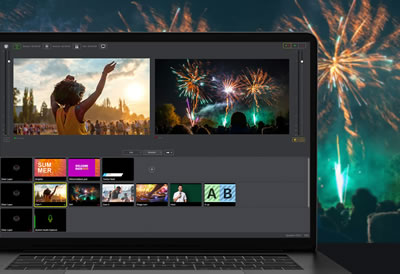
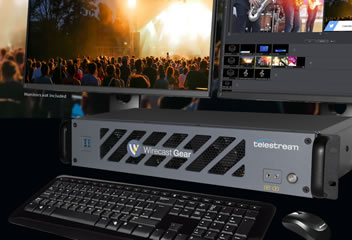
Wirecast Gear
Live video streaming production hardware system
Support | Download | Contact | FAQs

Wirecast Go
Moblie live video streaming app for iOS 13.4.1 and newer
Support | Download | FAQs | Training
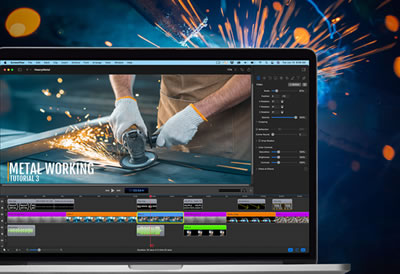
ScreenFlow
Video editing & screen recording software for Mac
Support | Download | Contact | FAQs | Upgrade | Reset License
Media Processing & Workflow Automation

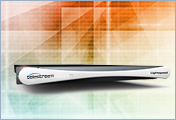
Lightspeed Server
GPU acceleration for Vantage video processing
Support | Contact | FAQs




TrafficManager
Streamline ad ingest and management
Support | Download | Contact | FAQs

Post Producer
Automate file-based content assembly
Support | Download | Contact | FAQs

Vidchecker
Automated quality control and correction of file-based media
Support | Contact | FAQs

CaptionMaker
Captioning & subtitling software for Windows
Support | Knowledge Base | Download | Reset License
Telestream Cloud Services

Vantage Cloud
Transcoding and workflow management in the cloud
Support | Docs | Contact


Video Test & Synchronization

Video Test Solutions
Analysis, Quality Control, Service Assurance and Regulatory Compliance
Support | Download | Contact


Waveform Monitors
SDI only monitoring for live, post, QC and engineering
Support | Download | Contact

Sync Generators
SDI only monitoring for live, post, QC and engineering
Support | Download | Contact

MPEG Analyzers
MTSA MPEG analyzer & PQA picture quality
Support | Download | Contact

Inspect 2110
IP Video Monitoring for your ST 2110 Production Network
Support | Contact
Video Quality Assurance

iQ Solutions
Video quality assurance for OTT, multiscreen & traditional linear TV
Support | Contact



Enterprise Capture and Streaming
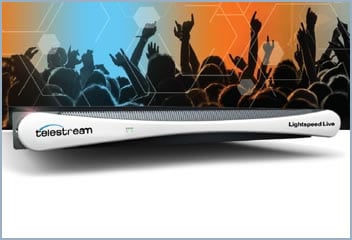
Lightspeed Live
Enterprise-class live streaming and capture
Support | Download | Contact

